An orphan page is a page that exists on your site but has no internal links pointing to it. Visitors cannot click their way to it, and search engines have a much harder time finding it. This guide shows you how to find and fix orphan pages with free tools, how to decide which ones deserve to be saved, and how to stop new ones from piling up.
If the idea of linking pages together is new to you, start with our explainer on what internal links are, then come back here to hunt down your orphans.
Key takeaways
- Google says every page you want indexed should have at least one link from another page on your site, so a page with zero internal links is a risk by definition.
- Being listed in your XML sitemap does not fix an orphan. Google describes sitemaps as a supplement to internal linking, not a replacement.
- The most reliable detection method compares two lists: every URL you own versus every URL a crawler reaches by following links. The difference is your orphan list.
- Not every orphan should be rescued. Triage each one into reconnect, redirect, noindex, or remove.
- Prevention is cheaper than cleanup: add a short internal-linking step to your publishing process and re-run the check after every redesign or migration.
What Are Orphan Pages?
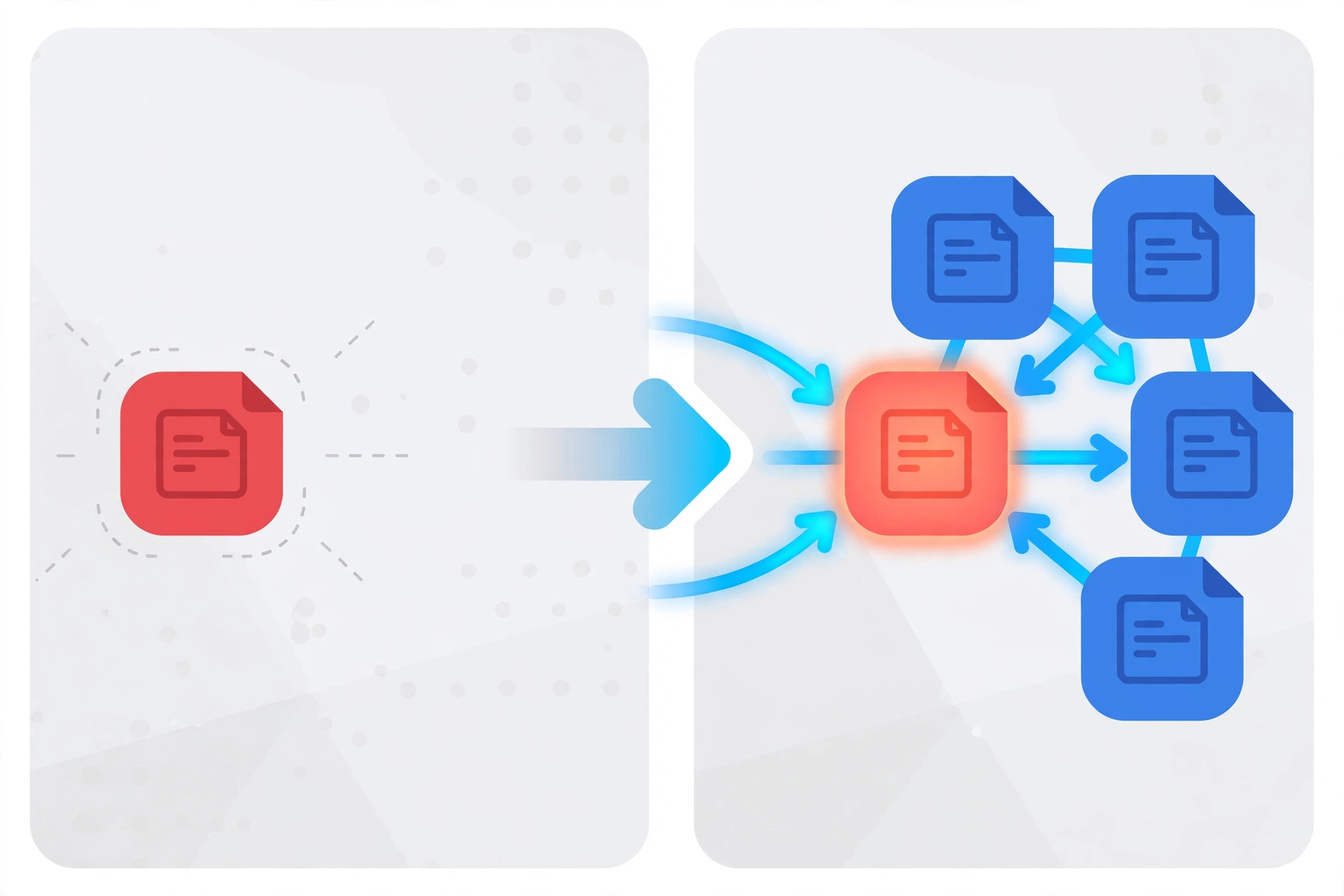
An orphan page is any URL on your website that no other page on your site links to. It may be live, return a normal 200 status code, and even sit in your XML sitemap. But there is no path of links leading to it from your homepage, menus, categories, or other content. Think of a room in a building with no hallway to it.
It helps to separate two cases:
- True orphans: nothing on your site links to the URL at all.
- Weakly linked pages: the page has a link, but only from a place that carries little weight, such as a very long archive page or a deep pagination page. This is not an official Google term, just a practical way to think about pages that are technically connected but effectively buried.
Some orphans are intentional, such as a thank-you page or a paid-ad landing page you only want to reach through a campaign link. Those can stay isolated. The problem is the accidental ones: useful posts and service pages that simply never got linked.
Why Orphan Pages Hurt
Google’s SEO Starter Guide says Google primarily finds pages through links from pages it has already crawled, and Google’s link documentation recommends that every page you want indexed has at least one link from another page. When a page has none, three problems follow:
- Discovery depends on other signals. Without internal links, Google may only learn about the URL through a sitemap or an external link, if at all.
- Context is missing. Anchor text from other pages helps Google understand what a page is about. An orphan has none of that context.
- Readers cannot find it. A page nobody can reach cannot satisfy anyone, however good the content is.
In Search Console, you may see these pages show up under statuses such as “Discovered – currently not indexed” or “Crawled – currently not indexed.” Google defines the first as a page it knows about but has not crawled yet, and the second as a page it fetched but chose not to add to the index. These statuses have several possible causes, so an orphan is a suspect, not a certainty. Our guide on fixing “Discovered – currently not indexed” covers the wider diagnosis.
How to Find and Fix Orphan Pages: Four Detection Methods
You are building two lists. List A is every URL that exists on your site. List B is every URL that can be reached by following internal links from your homepage. Orphans are the URLs in A that are missing from B.
Method 1: Search Console (quick, free)
Search Console does not have a button labeled “orphan pages,” but it gives useful clues.
- Open the Page indexing report and look at the “Discovered – currently not indexed” and “Crawled – currently not indexed” lists. Use the export button to download them.
- Open the Links report and look at the internal links table. Google notes it shows which of your pages receive the most internal links, and selecting a URL shows which pages link to it.
- For each suspicious URL, check whether any other page links to it.
Be aware of the report’s limits. Google states that the Links report tables are capped at 1,000 rows, that the report is a sample rather than a complete list, and that it may include links that have since been removed. Treat it as a hint, not proof. If you have not set up the tool yet, follow our Google Search Console guide first.
Method 2: Crawl versus sitemap comparison (most thorough)
This is the method that actually proves a page is an orphan.
- Run a site crawler starting from your homepage and export every URL it finds by following links. Free tiers exist, but each tool has its own limits, so check the current cap before relying on it for a large site.
- Export your XML sitemap URLs. For a WordPress site, you can also export all published posts and pages from the dashboard.
- Paste both lists into a spreadsheet and flag every URL that appears in your sitemap or CMS export but not in the crawl.
This also catches “sitemap-only” pages, which are the sneakiest kind because the sitemap gives a false sense of security. Google says a sitemap helps search engines crawl a site more efficiently, but it also notes that a sitemap does not guarantee every listed URL will be crawled or indexed.

Method 3: Manual spot check (no tools)
Short on time? Pick the ten most important URLs in your sitemap, such as key services and top posts. For each one, search your site for its title or visit likely hub pages and see whether a link exists. If you cannot name one page that links to it, treat it as an orphan until proven otherwise.
Method 4: WordPress link reports
Several WordPress SEO and internal-linking plugins can report posts with no incoming internal links. Our comparison of the best internal linking tools shows which options include this feature. Plugin reports only see what is stored in your WordPress database, so links added through page builders or custom code may be missed. Verify a few results by hand.
Whichever method you use, record each orphan in a simple sheet with these columns: URL, title, monthly clicks (from Search Console), whether it has backlinks, and your decision.
Example Scenario: A Small Business Blog
Example scenario: imagine a hypothetical plumbing company blog. The sitemap lists 120 URLs. A crawl from the homepage reaches 104 of them, so 16 URLs are orphans. After exporting Search Console data, the owner sorts them like this:
- 5 posts are useful and already show impressions, so they get reconnected.
- 4 old promo pages overlap with a newer service page, so they are redirected.
- 3 pages are ad landing pages, so they get a noindex tag.
- 4 pages are thin leftovers from a past redesign, so they are removed.
These numbers are invented for illustration, but the process is real: a single crawl comparison produced a clear to-do list in under an hour.
Triage: Reconnect, Redirect, Noindex, or Remove
Use the table below to decide what to do with each orphan.
| Situation | Best action | Why |
|---|---|---|
| Useful content, shows impressions or has backlinks | Reconnect with internal links | It already has value; links give crawlers and readers a path to it. |
| Overlaps with a stronger page | Redirect to the closest replacement | Consolidates signals and sends visitors somewhere useful. |
| Needed for a campaign but not for search | Add noindex and keep isolated | Keeps it reachable by link but out of search results. |
| Thin, outdated, no value | Remove and let it return 404 or 410 | Google treats both codes the same way for removed pages. |
A few notes on the actions:
- Noindex: Google supports it as a meta robots tag in the page head or as an X-Robots-Tag HTTP header. Do not also block the page in robots.txt. If crawling is blocked, Google never sees the noindex rule, and the URL may still appear in results if other pages link to it.
- Removal: Google’s documentation says 404 and 410 are handled the same way, and a previously indexed URL that returns them is removed from the index over time.
- Redirects: send the old URL to the most relevant live page, not blindly to the homepage.
How to Reconnect an Orphan Page: Step by Step
- Assign it a topic. Decide which cluster or category it belongs to. Link to it from the main guide or hub page for that topic.
- Add links from pages that matter. A link from a page that already gets traffic is more useful than a link from a forgotten archive. Add a contextual mention inside a relevant paragraph rather than a bare list of links.
- Write descriptive anchor text. Google says anchor text tells people and Google what the linked page is about, and that generic phrases like “click here” are weak. Read the anchor on its own: does it still make sense? Our guide to internal link anchor text has examples.
- Use real links. Google generally crawls a link only when it is an
<a>element with anhrefattribute. Links that depend on script events or lack an href may not be extracted. - Link back out. Add a link from the orphan to its hub page so readers can keep going.
- Do not overdo it. Google’s guidance gives no ideal number of links per page, but warns that too many is probably too many. See how many internal links per page for a practical way to think about it.
After you publish the new links, inspect the URL in Search Console and confirm it is not blocked by noindex or a conflicting canonical tag. Then be patient. Google’s help documentation says indexing is never instant, that a new page can take about a week to start being crawled, and that validating a fix can take up to about two weeks, sometimes longer.
Common Mistakes
- Trusting the sitemap. A URL in the sitemap can still be an orphan.
- Linking only from the footer or a giant tag page. That technically ends the orphan status but adds little context.
- Blocking a noindex page in robots.txt. Google then cannot see the tag.
- Redirecting everything to the homepage. Pick the most relevant replacement, or remove the page.
- Rescuing thin pages. If a page has no value, extra links will not give it any.
- Relying on one tool. Link reports are samples. Cross-check with a crawl.
How to Prevent Orphan Pages
- Add a pre-publish step. Before a post goes live, link to it from at least one relevant existing page and link from it to related pages.
- Re-run your audit on a schedule. A quarterly check is a reasonable habit, and it is especially important after a redesign, a URL change, or a content import, because changed URLs can break old links.
- Keep navigation current. When you retire a category or menu item, check what it used to link to.
Frequently Asked Questions
Are orphan pages always bad?
No. Pages meant only for a specific campaign or private use can be isolated on purpose. Add noindex if you do not want them in search results.
Will adding one link fix an orphan page?
It ends the orphan status, which is the minimum Google recommends. For a page you want to perform, add several relevant contextual links from pages that already matter.
Should I delete orphan pages?
Only the ones with no value. Reconnect useful pages, redirect overlapping ones, and remove thin leftovers.
Sources
- Google Search Central: Link best practices for Google
- Google Search Central: Sitemaps overview
- Search Console Help: Page indexing report
- Search Console Help: Links report
- Google Search Central: Block search indexing with noindex
- Google Search Central: HTTP status codes and network errors
Need a second pair of eyes on a large site? You can get in touch.