How to Do a Technical SEO Audit: The 2026 Step-by-Step Guide

Learn how to do a technical SEO audit in a day with free tools. A 10-step checklist for crawling, indexing, redirects, Core Web Vitals, and what to fix first.
How to Speed Up WordPress: A Practical Performance Guide

If you want to learn how to speed up WordPress without guessing, plugin-hopping, or breaking your site, this guide is for you. A slow WordPress site quietly drains your traffic, your Google rankings, and your revenue — most owners only notice when conversions have already slipped. Below you will find a practical 12-step performance plan, ordered by impact, plus three sections the top-ranking guides barely touch: no-plugin speed wins built into modern WordPress, WooCommerce-specific fixes, and a 30-minute diagnostic workflow to find your own bottleneck. Why a Slow WordPress Site Costs You Traffic, Rankings, and Revenue Speed is not a vanity metric. Around 47% of users expect a page to load within 2 seconds, and most abandon sites that take more than 3 seconds. Google confirmed page speed as a ranking signal, and its Core Web Vitals — Largest Contentful Paint (LCP) under 2.5 seconds, Interaction to Next Paint (INP) under 200ms, and Cumulative Layout Shift (CLS) under 0.1 — are direct ranking factors measured on real visitors. There is a newer dimension too: AI search tools like Google AI Overviews, ChatGPT, and Perplexity preferentially cite fast, well-structured sites. Research suggests sites loading under 2 seconds are significantly more likely to be referenced in AI-generated answers — which is why speed now matters for ranking in Google AI Overviews as well as classic search. Every extra second of load time costs roughly 4–8% in conversions, so performance work is a revenue investment, not a technical chore. How to Speed Up WordPress: The 12-Step Performance Plan Work through these steps in order. Each one builds on the last, and the first three alone typically fix the majority of slow WordPress sites — follow them in sequence and you will genuinely understand how to speed up WordPress instead of applying random tweaks. Step 1: Measure Your Speed Before Changing Anything The first rule of WordPress speed work: measure before you touch anything. Without a baseline, you cannot tell which fix worked. Run Google PageSpeed Insights on your homepage, your most-visited blog post, and your main landing page — results differ wildly between pages. Also check Google Search Console under Experience → Core Web Vitals for a site-wide view of which URLs pass or fail. Test logged out and in an incognito window, because the WordPress admin bar loads extra scripts that inflate your numbers. Step 2: Fix Hosting and PHP First No speed guide is honest if it skips hosting. Your server sets the ceiling for everything else: a slow host means a slow Time to First Byte (TTFB), and no plugin can fully hide it. Aim for TTFB under 200ms — anything above 600ms is a red flag. Look for managed WordPress hosting with PHP 8.3 or 8.4 (dramatically faster than PHP 7.x), server-level caching, NVMe SSD storage, and HTTP/3 support. Moving from budget shared hosting to quality managed hosting is routinely the highest-ROI single action, often improving response time by 400–600ms on its own. If you are budgeting for the upgrade, our breakdown of how much SEO costs puts performance work in the context of overall marketing spend. Step 3: Install One Caching Plugin — and Only One By default, WordPress rebuilds every page dynamically with PHP and database queries on each visit. A caching plugin stores a pre-built HTML copy and serves it instantly. Pick exactly one caching plugin — running two causes conflicts that can slow or break your site. Plugin What It Does Cost Best For WP Rocket Caching, minification, lazy loading, CDN integration Paid Non-technical owners who want one tool that just works LiteSpeed Cache Server-level caching, image optimization Free Sites on LiteSpeed servers — fastest free option W3 Total Cache Full caching stack, highly configurable Free Advanced users comfortable with manual setup FlyingPress Lightweight caching plus code optimization Paid Speed-focused sites wanting minimal overhead At minimum, enable page caching, browser caching, and GZIP or Brotli compression. Back up your site before enabling minify or combine features — some themes break when CSS or JavaScript is combined — and test thoroughly after each change. Step 4: Optimize and Compress Your Images Images typically account for 40–70% of total page weight, making them the number one cause of LCP failures on WordPress sites. A photo uploaded straight from a phone can be 4–8MB; a properly compressed web version should be under 200KB with no visible quality loss. The fix: resize images to their display size before uploading (content containers are usually 1200–1400px wide), then bulk-compress your existing library with ShortPixel, Smush, or Imagify and convert everything to WebP, which runs 25–35% smaller than JPEG. In our experience, disciplined image sizing is the habit that separates fast sites from slow ones in every how to speed up WordPress project we audit. Step 5: Switch to a Lightweight Theme Feature-heavy themes like Divi and Avada load sliders, animation libraries, and icon packs on every page whether you use them or not. Lightweight options with near-perfect Core Web Vitals out of the box include GeneratePress, Astra, Kadence, and block-based themes. Step 6: Minify CSS and JavaScript, Defer Non-Critical Scripts Every CSS and JavaScript file is a request your visitor’s browser must download, and render-blocking scripts delay LCP because the page cannot paint until they finish. Minification strips whitespace and comments, typically shrinking files by 20–40%. Your caching plugin (or Autoptimize, free) handles this automatically. Then defer or async-load anything not needed for the first paint: analytics, chat widgets, and social embeds should never block rendering. Check PageSpeed Insights for the “Eliminate render-blocking resources” warning and fix each flagged file. Step 7: Add a CDN A content delivery network stores copies of your static files — images, CSS, JavaScript — on servers worldwide, so visitors download from the nearest location instead of your origin server. Cloudflare’s free tier covers most small business sites and adds DDoS protection automatically; BunnyCDN is a fast, ultra-affordable alternative for image-heavy sites. Enable Cloudflare’s Auto Minify for HTML, CSS, and JS as a bonus optimization
Mobile SEO Checklist 2026: 25-Point Audit

Google no longer asks whether your site works on mobile — it assumes the mobile version is your site. Since the mobile-first index rollout completed, Google’s smartphone crawler is the primary version it uses to evaluate your content, relevance, and user experience. This mobile SEO checklist 2026 gives you 12 concrete steps to audit and fix your mobile presence, based on what actually moves rankings this year: Core Web Vitals measured on real devices, strict mobile–desktop content parity, speed on slow networks, and a mobile experience users actually enjoy. Over 58% of global web traffic now comes from mobile devices, and on many B2C sites the figure is far higher. If your mobile experience is an afterthought, you are not just losing conversions — you are handing your competitors the rankings. Work through the mobile SEO checklist 2026 below in order; each step builds on the last. Why Mobile SEO Is Non-Negotiable in 2026 Mobile-first indexing changed the fundamental question of SEO. Google used to crawl your desktop site and treat the mobile version as a bonus. Today it crawls your site with a smartphone user-agent, indexes what that crawler sees, and ranks you accordingly. A site whose desktop version is flawless but whose mobile version hides content, blocks resources, or loads in nine seconds will underperform — on both mobile and desktop results, which is why every item on the mobile SEO checklist 2026 matters. The business case is just as stark. Mobile users bounce faster, convert less readily, and have zero patience for pinching, zooming, or waiting. A one-second improvement in mobile load time can lift conversions measurably, while intrusive pop-ups and broken tap targets silently kill the traffic your content earned. Mobile SEO in 2026 is therefore not a technical side-project; it is the main event, and the mobile SEO checklist 2026 treats it that way. How Google’s Mobile-First Index Actually Works Understanding the mechanism makes the checklist easier to follow. When Google discovers your URL, it fetches it as Googlebot Smartphone — a mobile user-agent with a mobile viewport. The HTML, structured data, and resources returned in that response are what get indexed. If your mobile page serves less content than the desktop page, drops your schema markup, or noindexes itself, Google indexes the lesser version. Google’s own documentation on mobile-first indexing best practices is the authoritative reference, and it is worth reading alongside this guide. Two consequences follow. First, parity is everything: the mobile and desktop versions must carry the same primary content, the same structured data, the same metadata, and the same internal links. Second, mobile page experience is a ranking input: Core Web Vitals measured from real mobile users (the Chrome User Experience Report, or CrUX) feed directly into how Google assesses your pages. The checklist below is organized around exactly these two pillars, plus the UX layer that connects them to revenue — the three pillars the mobile SEO checklist 2026 is organized around. The Mobile SEO Checklist 2026: 12 Steps That Actually Move Rankings Every item on this mobile SEO checklist 2026 is something you can verify today with free tools. Run through them in sequence and fix what fails before moving on — the mobile SEO checklist 2026 rewards completion, not cherry-picking. 1. Confirm your mobile-first indexing status Step one of any mobile SEO checklist 2026 is verification, not assumption. Open Google Search Console, paste a key URL into URL Inspection, and check the “Crawled as” line — it should read Googlebot smartphone. Then open the Page indexing and Mobile Usability reports and clear every error: viewport misconfiguration, content wider than the screen, text too small to read, and clickable elements too close together. These are not cosmetic warnings; they are Google telling you exactly why a page is held back. 2. Go responsive — or annotate your separate mobile site properly Responsive design remains Google’s recommended configuration, and for good reason: one URL, one HTML, no redirect chains, no annotation headaches. If you still run a separate mobile site (m.example.com), you are maintaining two codebases and doubling your QA surface. Should you keep it, the setup must be exact: every desktop page needs a rel=”alternate” pointing at its mobile twin, every mobile page needs a rel=”canonical” pointing back at the desktop version, and mobile redirects must be single-hop and fast. Redirect latency hits mobile users hardest, because every extra round-trip happens on a slower connection. Most teams that migrate from m-dot to responsive see their mobile maintenance burden — and their mobile error counts — drop sharply. 3. Pass Core Web Vitals on mobile, not just on desktop Core Web Vitals are Google’s page-experience metrics, and on mobile the thresholds are unforgiving: LCP (Largest Contentful Paint) under 2.5 seconds, INP (Interaction to Next Paint) under 200 milliseconds, and CLS (Cumulative Layout Shift) under 0.1. Crucially, Google judges you on field data — real measurements from real Chrome users on real phones — not on what your developer’s laptop reports. That is why the mobile SEO checklist 2026 starts with measurement, not guesses: pull your CrUX data in Search Console’s Core Web Vitals report, then use PageSpeed Insights to see both lab and field numbers for the exact URLs that matter. Fix the biggest offender first. LCP on mobile is usually an oversized hero image or a slow server response; INP suffers when heavy JavaScript blocks the main thread during taps and scrolls; CLS spikes when images lack dimensions, ads inject late, or web fonts swap aggressively. Set explicit width and height on every image, reserve space for ad slots, and use font-display: swap with fallback fonts that match closely. 4. Optimize for slow networks, not just fast phones Your office Wi-Fi is not your user’s reality. Test every key template throttled to a mid-tier 4G connection — PageSpeed Insights and WebPageTest both offer this — and set a hard page-weight budget of 1.2–1.5 MB for typical content pages. The mobile SEO checklist 2026 rule of thumb: if it
JavaScript SEO Optimization: Make JS Content Rank
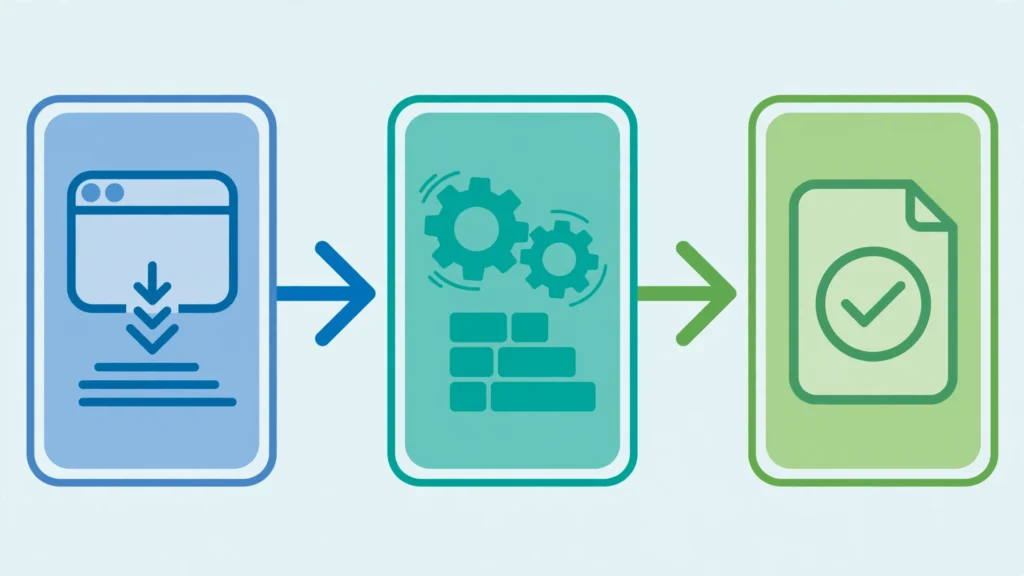
How Google crawls, renders, and indexes JavaScript pages, the problems that cost rankings, and a 10-step audit for React, Vue, and Next.js sites.
Core Web Vitals 2026: Thresholds, Tools & Quick Fixes

Core Web Vitals thresholds for LCP, INP and CLS explained, with lab versus field data, the right tools, and fixes by metric plus a worked diagnosis example.