How to Use Google Trends for SEO: The 2026 Workflow (7 Steps)
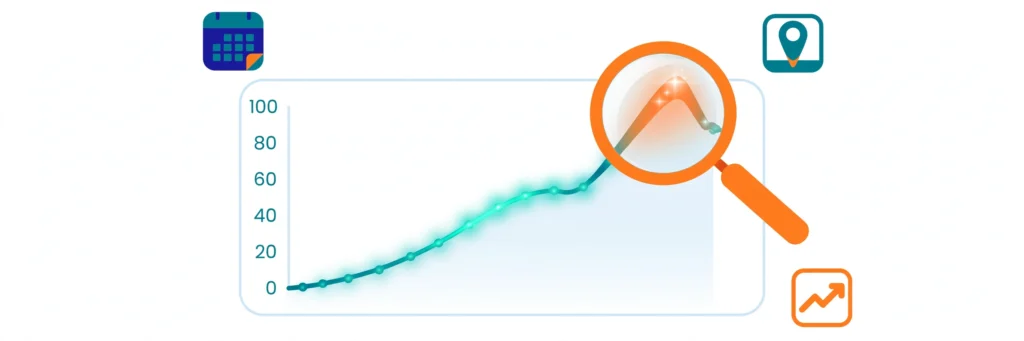
Learning how to use Google Trends for SEO is one of the highest-return skills a marketer can pick up — it takes about twenty minutes to learn and costs nothing. Google Trends shows you how interest in any search term moves over time and across regions, using a simple 0–100 score. That signal answers questions raw search volume cannot: is this topic rising or dying? Which phrasing do people actually type? And when should I publish to catch the wave? Most guides stop at describing the tool’s features. This guide goes further and shows exactly how to use Google Trends for SEO: you get a practical 7-step workflow, a 20-minute weekly routine, a method for validating Trends signals against your own Search Console data, and a 2026-specific angle most guides miss: turning rising queries into content that AI search engines cite. How to Use Google Trends for SEO: The 7-Step Workflow Here is the exact workflow. Each step takes a couple of minutes once you know what to look for. Step 1: Scope Your Search Correctly Open Google Trends and enter your seed term. Before reading anything, set four controls: Location: match your market (country, region, or city — not worldwide by default). Time range: start with “Past 12 months” for direction. Category: filter out ambiguous meanings (for example, “jaguar” the car versus the animal). Search type: Web Search, Image, News, Google Shopping, or YouTube Search. One more choice matters: as you type, Google offers a search term (the exact phrasing) and a Topic (a grouped set of related queries across languages and spellings). Topics give you the fuller demand picture; search terms give precision. Use Topics for research, search terms when you need exact-match accuracy. Getting this scoping right is the foundation of how to use Google Trends for SEO effectively. Step 2: Read Direction, Not Height The chart’s most common misreading is treating tall lines as big demand. The 0–100 score is relative: 100 means the term’s busiest moment in the selected period, not 100 searches. A line climbing steadily over 12 months is worth far more than one tall spike. When you learn how to use Google Trends for SEO, remember to discount the last one or two data points — Google revises recent weeks downward as data settles, so the newest dip is often a mirage. Step 3: Validate Keywords Before You Commit Before you build a page around any keyword, switch the range to Past 5 years and check the shape: Steady or climbing: safe to invest in. Gently declining: the topic is maturing — you can still rank, but budget less. Cliff-edge drop: walk away. No amount of optimization revives dead demand. This single check prevents the most expensive SEO mistake: spending months ranking for a keyword nobody searches anymore. If you adopt only one habit from this guide on how to use Google Trends for SEO, make it this one. Step 4: Pick the Winning Keyword Variation Type two or three phrasings and compare them head to head. Trends shows which version real people prefer, and the answer often surprises — conversational phrasing frequently dwarfs formal alternatives even when keyword tools report similar volumes. Comparing variations like this is how to use Google Trends for SEO to settle phrasing debates with data. Choose the winner Google Trends shows, then confirm its exact monthly volume in a dedicated keyword tool — our keyword research guide walks through the full process. Trends is your radar; the keyword tool is your ruler. Step 5: Mine Rising Queries for Content Ideas Scroll to Related queries and toggle from “Top” to “Rising.” This list shows the fastest-growing associated searches, and “Breakout” flags terms up more than 5,000%. Treat Breakout terms as free content briefs — this is how to use Google Trends for SEO to turn live demand into a content pipeline. Each one is a question real people are asking right now with almost no competition. Build a section, a page, or a video around the ones that fit your topic. Step 6: Time Your Content With Seasonal Trends Trends’ timeline exposes seasonality, and learning how to use Google Trends for SEO means planning your calendar around it. Some searches surge every year — gifts in December, diets in January, patio furniture in May. Map your niche’s calendar, then publish 4–6 weeks BEFORE the peak so the page is indexed and climbing when demand hits. The same logic works in reverse: never launch a big campaign at a predictable trough unless you have a reason. Step 7: Compare, Then Double Down on What Works Use the compare feature to test hypotheses: your keyword versus a competitor’s, your brand versus theirs, last year’s campaign versus this one. The side-by-side view removes guesswork about which angle deserves more budget. This is how to use Google Trends for SEO to allocate budget with confidence. A simple loop closes the workflow: compare variations, pick winners, mine rising queries, time the calendar, then re-compare quarterly. Trends rewards marketers who treat it as a weekly habit, not a one-time check. The 20-Minute Weekly Routine Minutes 0–5: refresh your core keyword comparisons (Steps 1, 2, 4). Minutes 5–12: scan Rising queries in your niche (Step 5) and log anything Breakout. Minutes 12–17: check seasonality for upcoming 4–6 weeks (Step 6). Minutes 17–20: note one action in your content calendar. Repeat this loop weekly — it is how to use Google Trends for SEO as an ongoing habit rather than a one-time check. Validate Trends Against Your Search Console Data Trends shows relative interest; Search Console shows your actual impressions and clicks. Pair them: when Trends shows a rising query and Search Console shows you on page 2 for it, you have a high-ROI target. Refresh the page with the exact phrasing from Trends, add the subtopic, and watch rankings climb. Pairing the two is how to use Google Trends for SEO alongside your own first-party data — and if you are new to
Free Backlink Checker Tools Compared: What Each One Shows (2026)

Compare free backlink checkers, including Search Console and Ahrefs Webmaster Tools, with each tool’s limits and a simple workflow for using them together.
7 Best Internal Linking Tools Compared (2026)

Picking the right internal linking tools is one of the highest-ROI decisions a site owner can make: the right tool finds orphan pages, surfaces missed link opportunities, and turns a sprawling archive into a coherent structure in weeks instead of months. If you are new to the concept itself, start with our guide on what internal links are — then come back here to pick the tool that fits your site. This guide compares the 7 best internal linking tools for 2026 on features, real pricing, automation style, and the one thing most comparisons skip: the risk each tool carries for your anchor text. What Internal Linking Tools Actually Do Internal linking tools fall into four job types, and most buyer confusion comes from comparing across them: Recommendation and insertion tools find relevant source-to-target pairs and reduce the work of placing the link. Link Whisper, LinkBoss, LinkStorm, and InLinks live here. Rule-based automation applies explicit keyword-to-URL rules you define. Internal Link Juicer is the purest example — deterministic, fast, and completely under your control. Editor assistants suggest links while you write. Yoast SEO Premium and content suites like Surfer fit here: helpful at publish time, but not built for clearing a backlog. Audit-led tools expose weak architecture (orphans, deep pages, broken chains) and leave implementation to you. Crawlers like Screaming Frog and suites like Ahrefs and Semrush cover this. Decide which job you need done before buying: a 30-page site needs an editor assistant, while a 3,000-page archive needs recommendation plus bulk workflows. A hands-on review by Search Engine Watch found that real archives test tools on five hard jobs — suppressing duplicate links, resolving outdated URLs, linking old pages to new articles, distinguishing real relationships from word overlap, and picking the right destination among similar pages. The 7 Best Internal Linking Tools at a Glance Tool Best for Platform Entry price Automation style Link Whisper Dedicated WordPress internal linking WordPress $97/year AI suggestions + auto-link rules LinkBoss Bulk linking and silo building WordPress Free; $11/month Bulk NLP processing Internal Link Juicer Rule-based automation on a budget WordPress Free; Pro $69.99/year Keyword dictionary rules LinkStorm Large or non-WordPress sites Any CMS (SaaS) $30/month AI recommendations InLinks Semantic, entity-based linking Any CMS (SaaS) Free try; from $49/month Entity graph automation Yoast SEO Premium Teams already using Yoast WordPress $118.80/year In-editor suggestions AIOSEO Full WordPress SEO suite buyers WordPress $199.50/year Link Assistant + reports 1. Link Whisper — Best Dedicated Internal Linking Tool Link Whisper is the most focused product on this list: a WordPress plugin built almost entirely around internal linking. It scans your content and serves contextual link suggestions inside the editor, reports inbound and outbound links per page, flags orphan content, monitors broken links, and supports keyword-to-URL auto-linking rules. Standout features: orphan-page detection, Google Search Console integration, domains report with CSV exports, and dynamic visual sitemaps that reveal content hubs and weak branches. Pros: easiest dedicated workflow inside WordPress; strong orphan discovery; good balance of automation and manual control. Cons: WordPress only; suggestions still need manual review for anchor quality; broader SEO features live elsewhere. Verdict: the default pick for WordPress publishers who want one tool whose entire job is internal linking. 2. LinkBoss — Best for Bulk Linking and Silos LinkBoss takes the opposite approach from Link Whisper: instead of working link by link in the editor, it processes links in bulk using NLP, which makes it the strongest pick for clearing a large backlog or building silo structures across a big WordPress site. Standout features: bulk interlinking runs, silo-building workflows, and semantic matching beyond exact keyword overlap. Pros: unmatched for bulk operations; cheap entry point; good for agencies inheriting messy archives. Cons: bulk-generated links need human review — volume without review produces awkward placements; weak in-editor daily workflow. Verdict: choose LinkBoss when clearing a backlog in bulk matters more than crafting each link by hand. 3. Internal Link Juicer — Best Rule-Based Automation on a Budget Internal Link Juicer is beautifully simple: you assign keywords to target pages, and the plugin turns matching mentions into internal links across your site. It is deterministic — the same rules always produce the same links — which some teams prefer over opaque AI suggestions. Standout features: keyword-driven auto-linking with whitelist/blacklist controls, per-page link limits, a link statistics dashboard, and one-click keyword import from Yoast or Rank Math. Pros: free tier available; cheapest serious option; total control over rules; excellent for evergreen content with repeated terms. Cons: keyword matching is not semantic — a sloppy rule repeats the same anchor across dozens of pages (see the risk matrix below). Verdict: the best value pick when you know your destinations and approved phrases in advance. 4. LinkStorm — Best for Large Sites and Any CMS LinkStorm is a SaaS product, which makes it the first tool to consider when the site is not on WordPress, might change CMS, or when one dashboard must cover several properties. You add a snippet, it crawls, and its AI surfaces prioritized internal link opportunities. Standout features: AI link recommendations at scale, unlimited projects and websites, and clear URL-based pricing with AI costs bundled in. Pros: platform-independent; clear pricing; good for agencies managing mixed-CMS portfolios. Cons: monthly billing adds up faster than annual plugin renewals; overkill for small sites. Verdict: the pick for large sites, agencies, and anyone not locked into WordPress. 5. InLinks — Best for Semantic, Entity-Based Linking InLinks approaches internal linking through entities and topics rather than keywords. It maps the concepts your content covers, then suggests and automates links based on semantic relationships — which handles synonyms and close variants that keyword matching misses entirely. Standout features: entity and topic mapping, internal link automation from the knowledge graph, schema markup support, and content briefs that reduce cannibalization before publishing. Pros: the smartest matching on this list for topical authority; schema and planning in one place. Cons: steeper learning curve than a WordPress plugin; page-based pricing needs watching on big sites. Verdict: choose
Google Search Console Guide: Setup to Mastery

Google Search Console is the only free tool that shows you exactly how Google sees your website: which pages it has indexed, what people searched before they found you, and what technical problems are quietly holding your rankings back. Most beginners open it once, glance at a confusing dashboard, and never return. This google search console guide fixes that. Bookmark this google search console guide — you will return to these reports every week. You will learn what every report actually tells you, which numbers deserve your attention, and the exact actions to take when something looks wrong. What Is Google Search Console (and What It Is Not) Google Search Console (often shortened to GSC) is a free service from Google for website owners. It reports on how your site performs in Google Search: the queries that triggered your pages, your clicks and impressions, your indexing status, crawl problems, and security issues. Think of it as Google’s diagnostic dashboard for your site. Just as important is what it is not. It is not a competitor rank tracker, a keyword research tool, or a Google Analytics replacement. Analytics shows what visitors do after they arrive; Search Console shows what happened before the click, inside Google’s results. Link the two and you see the full journey. That distinction is why this google search console guide pairs every report with the decision it should drive. A great google search console guide always ties data to decisions, never to vanity metrics. One warning: Search Console only stores data from the moment you verify your site. It never backfills history, so every month you delay setup is data you will never recover. Set It Up Before You Read Another Word Setup takes about ten minutes, and it is the foundation this google search console guide builds on. The key decision is property type. A Domain property covers your entire domain — every subdomain, http and https — but needs DNS verification. A URL-prefix property is easier to verify but only captures the exact address entered. For almost every site, Domain is the right choice. To verify, add a DNS TXT record at your registrar (the most stable option), paste an HTML meta tag into your homepage, upload an HTML file to your server root, or verify through Google Analytics or Tag Manager if already installed. Follow the steps at Google Search Console. Then submit your sitemap under Indexing > Sitemaps (WordPress with Rank Math or Yoast generates one automatically) and link the property to GA4 under Admin > Search Console links, so query data flows into your Analytics reports. The GA4 link is the one setup step this google search console guide insists on — skip it and you lose the full-funnel view. Google Search Console Guide: Reading the Performance Report Like a Pro The Performance report is where you will spend most of your time, and this google search console guide treats it as the foundation everything else builds on. Four metrics sit at the top. Clicks count real visits from Google results. Impressions count how often your pages appeared, whether or not anyone clicked. CTR is clicks divided by impressions — thousands of impressions with almost no clicks usually means a weak title or meta description, not a ranking problem. Average position is your mean ranking across all queries; read it as a trend, not a precise number. Below the chart, tabs slice data by Queries, Pages, Countries, Devices, Search appearance, and Dates. Two filters beginners underuse: Search type (Web, Image, Video, News) separates image and video performance from standard results — handy if you publish infographics or video. The branded versus non-branded query filter separates searches for your business name from searches by strangers. The non-branded view is your true SEO scorecard, and this google search console guide recommends bookmarking it as your default view. The fastest win here is the “almost there” page: filter for average position 8–20 and sort by impressions. These pages are visible and generating searches but sit just outside the click zone. A stronger title, a clearer meta description, deeper content, or one more internal link can push them onto page one. Note that if impressions hold steady while clicks fall, AI Overviews may be absorbing the clicks for those queries — a visibility shift, not a ranking failure. Every Report That Matters, Decoded With Performance understood, here is the rest of the dashboard in the order a beginner should learn it — and this google search console guide flags which statuses deserve action and which are safe to ignore. Take it one section at a time: each report takes five minutes to understand in this google search console guide, and a lifetime to master. URL Inspection Tool Paste any URL into the top search bar to see exactly how Google views that page: index status, last crawl date, and whether the mobile version renders correctly. After publishing or fixing a page, use Test live URL and then Request indexing to queue a recrawl — most pages are processed within hours to a few days. Use it surgically for important pages; requesting indexing for your whole site every day wastes your crawl attention. Pages (Indexing) Under Indexing > Pages, Google groups every known URL into statuses. The one that matters most is “Crawled — currently not indexed”: Google read the page and chose not to include it, usually because the content is thin, duplicated, or not judged worth indexing. Fix it on important pages with deeper, more original content and stronger internal links. Also learn the rest: “Discovered — currently not crawled” (Google knows the page exists but has not visited yet), “Excluded by noindex tag,” “Blocked by robots.txt,” and “Not found (404).” On tag archives or utility URLs, “crawled, not indexed” is usually the algorithm working correctly — not an emergency. Pair this with an audit of how crawlers read your site files, starting with our explainer on what llms.txt is. Sitemaps Your sitemap lists